Master the Draw Tool in Studio: A Creator's Guide
Unlocking Your Creative Potential with the Draw Tool
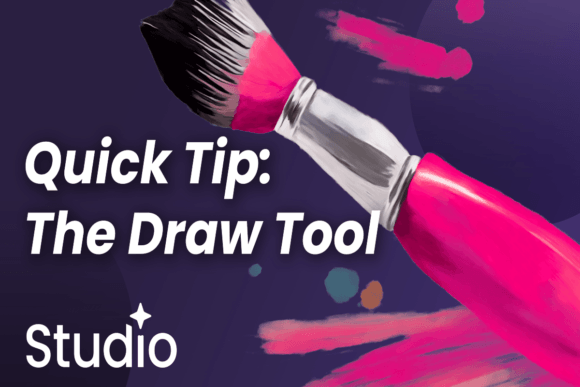
The Draw Tool in Studio is more than just a simple digital pencil; it's a versatile instrument designed to bring a human touch to your digital projects. For creators, designers, and entrepreneurs, understanding this tool is key to adding unique, hand-crafted elements that stand out. Unlike rigid, pre-made graphics, the Draw Tool allows for organic lines, custom illustrations, and personalized annotations that can transform a standard design into something memorable. Its appeal lies in its ability to mimic various media—from a fine-tipped pen for detailed work to a broad marker for bold strokes—giving you creative control directly on your canvas.
Visually, the tool offers a clean, intuitive interface. You'll find adjustable settings for brush size, opacity, color, and smoothing. This flexibility means you can sketch a quick idea, refine a detailed illustration, or even create custom handwritten font elements for a project. The personality it brings to a design is one of authenticity and warmth, making it perfect for projects that aim to connect on a personal level with their audience.
Where the Draw Tool Shines: Applications for Real Projects
The true power of learning how to use the Draw Tool in Studio is realized when you apply it to real-world design challenges. This tool is a secret weapon for enhancing brand identity and visual storytelling across numerous mediums. Consider its use in logo design, where a hand-drawn emblem can convey craftsmanship and originality far better than a generic clipart icon. For editorial design, you can use it to create custom dividers, spot illustrations, or margin notes that give a magazine or blog post a unique, curated feel.
In packaging design, hand-drawn elements can make a product feel artisanal and approachable. For web design and social media graphics, quick sketches or annotations can guide a viewer's eye or highlight key information in a way that feels dynamic and engaging. The Draw Tool is equally valuable for creating personalized assets like custom icons, doodles for planners, or unique borders for presentations. It bridges the gap between digital polish and human imperfection, a quality highly valued in modern marketing.
Influencing Perception and Engagement
How you use the Draw Tool directly impacts how your audience perceives your project. Integrating hand-drawn elements can significantly improve visual hierarchy. A sketched arrow or underline naturally draws the eye, helping to structure information without relying solely on typographic weight. This technique enhances readability by breaking up dense text and making layouts more approachable.
From a brand perception standpoint, consistent use of a specific drawing style can become a recognizable part of your brand identity. It signals a brand that values creativity, personality, and a hands-on approach. This fosters better audience engagement; people are naturally drawn to content that feels human-made. It creates a sense of consistency and professionalism when the drawn elements are used thoughtfully and align with the overall brand message. Think of it as adding your signature style to every piece of content.
Practical Guidance for Mastering the Tool
To effectively integrate the Draw Tool into your workflow, start with a clear purpose. Don't add doodles for the sake of it; use them to solve a design problem or enhance a message. Begin by testing different brushes and settings on a separate canvas to understand their feel. Pay close attention to smoothing settings, as these can help create cleaner lines if you have an unsteady hand, or can be turned off for a more raw, energetic look.
When choosing to use hand-drawn elements, evaluate the project's tone. A corporate financial report might call for minimal, clean annotations, while a children's brand or a coffee shop's menu could embrace more playful, expressive drawings. Always consider readability. If you're drawing text, ensure the letterforms are legible at the intended size. It's often best to use the Draw Tool for accents and illustrations rather than body copy.
Review your work at different zoom levels and on various devices, especially for digital projects. What looks charming on a large screen might become a messy scribble on a mobile phone. Finally, remember that like any design asset, hand-drawn elements created in Studio can be saved and reused, helping you maintain consistency across campaigns and build a library of unique creative font alternatives and graphic elements. Mastering how to use the Draw Tool in Studio is about practice and intentional application, ultimately giving you a powerful edge in your creative toolkit.